Tuneliq Card User Guide
1.0.5 · Updated September 26, 2026

A Tuneliq Card is a greeting card that sings.
You make a song in the Tuneliq app, record a voice message, and write both to Tuneliq Card.
The person you give it to switches it on and hears the music. No app. No internet.
Get to know your card
You only need to use two parts of the card: the Power Switch (5) and the Button (1).
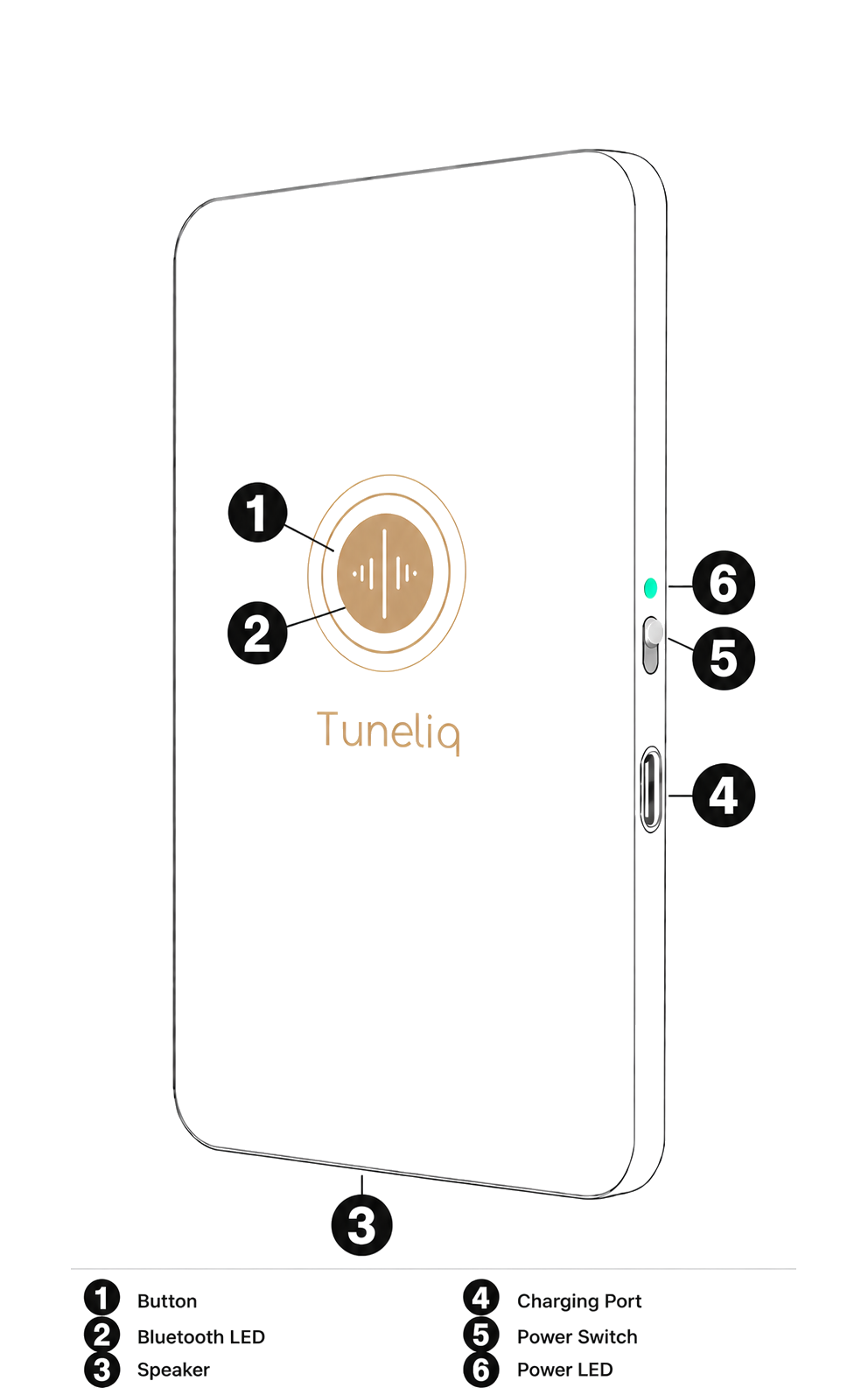
Figure 1. Buttons, LEDs, and ports
| No. | Part | What it does |
|---|---|---|
| 1 | Button | Plays, pauses, and returns the card to setup mode |
| 2 | Bluetooth LED | Shows whether the card is connected to your phone |
| 3 | Speaker | Plays the song, the voice message, and prompt tones |
| 4 | Charging Port | Charges over USB-C |
| 5 | Power Switch | Turns the card on and off |
| 6 | Power LED | Shows startup, charging, low battery, and fault states |
The Button and the Bluetooth LED both sit in the round logo on the front. The Button is flush with the surface. Press the middle of the logo.
The five steps
- Download the Tuneliq app and make your song.
- Switch the card on.
- Write the song to the card.
- Play it all back, then seal the card as a gift.
- Switch the card off, then place it in the gift box.
Everything happens in the app. You never need to open your phone settings.
Step 1: Download the app and make your song
Scan the QR code below, or open https://get.tuneliq.com and follow the prompts. You can also search for Tuneliq in the App Store or on Google Play.

Figure 2. Scan to download the Tuneliq app
Make a song in the app, or pick one you already have. To add a greeting, record a voice message. You can place it before or after the song.
Finish the song before you start writing to the card.
For limits on length and quantity, see “What the card holds”.
Step 2: Switch the card on
Slide the Power Switch on the right edge upward.
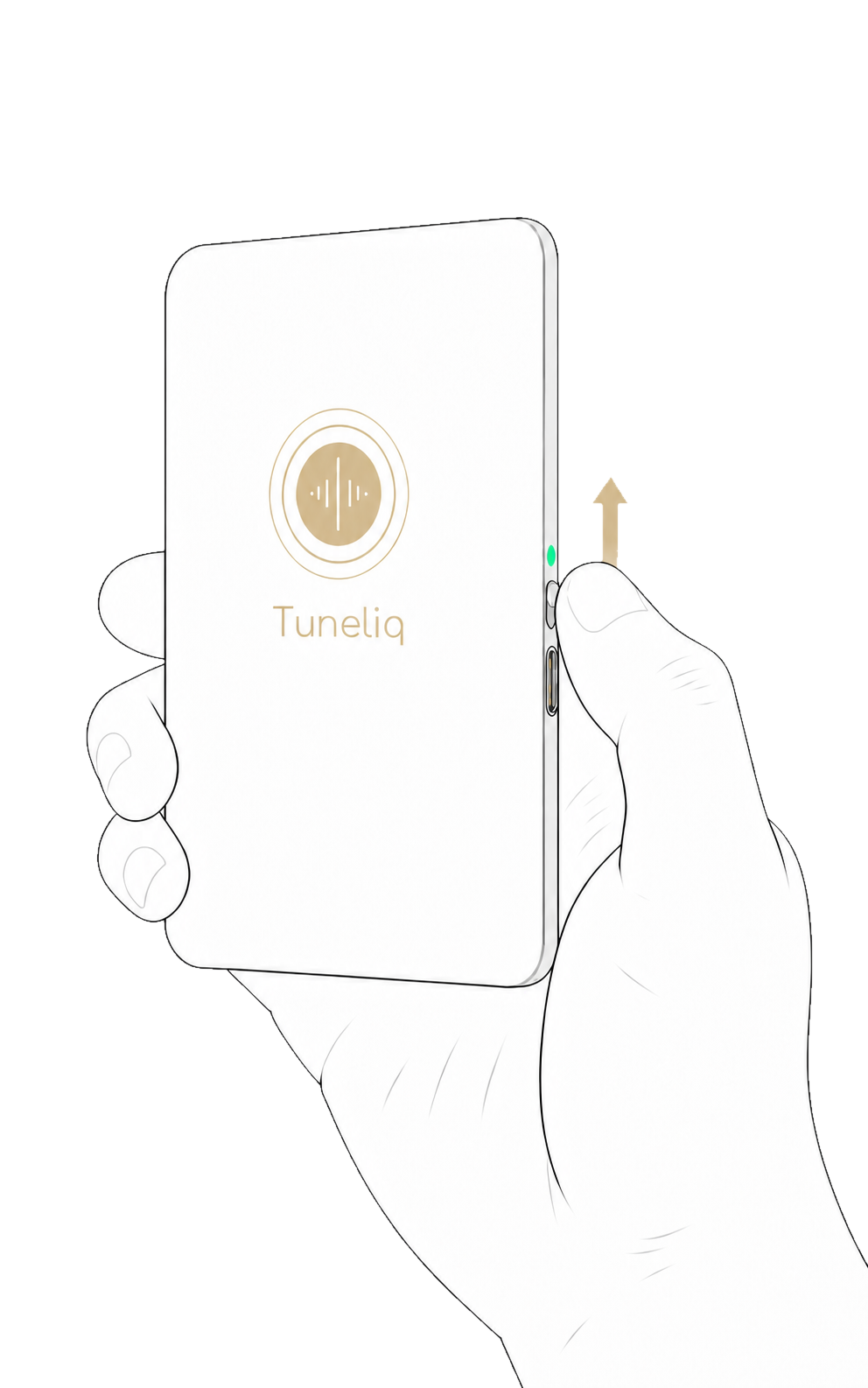
Figure 3. Switching on
The green LED comes on briefly, the Bluetooth LED starts flashing, and the card is ready for the app. A brand-new card plays a short setup message the first time you switch it on.
Tip: if the battery is low, plug in a USB-C cable first and leave the Power Switch on.
Step 3: Write the song to the card
- Tap “Write to Tuneliq Card” in the app.
- Pick your card from the list.
- Keep your phone near the card until the app confirms the transfer.
Once connected, the Bluetooth LED stops flashing and stays on. When the song is saved, the card plays one prompt tone.
Tip: keep your phone within one meter of the card during the transfer to avoid losing the connection. Don't move the Power Switch or leave the app while the transfer is in progress.
Step 4: Play it back and seal it as a gift
Listen to the whole thing before you give the card away.
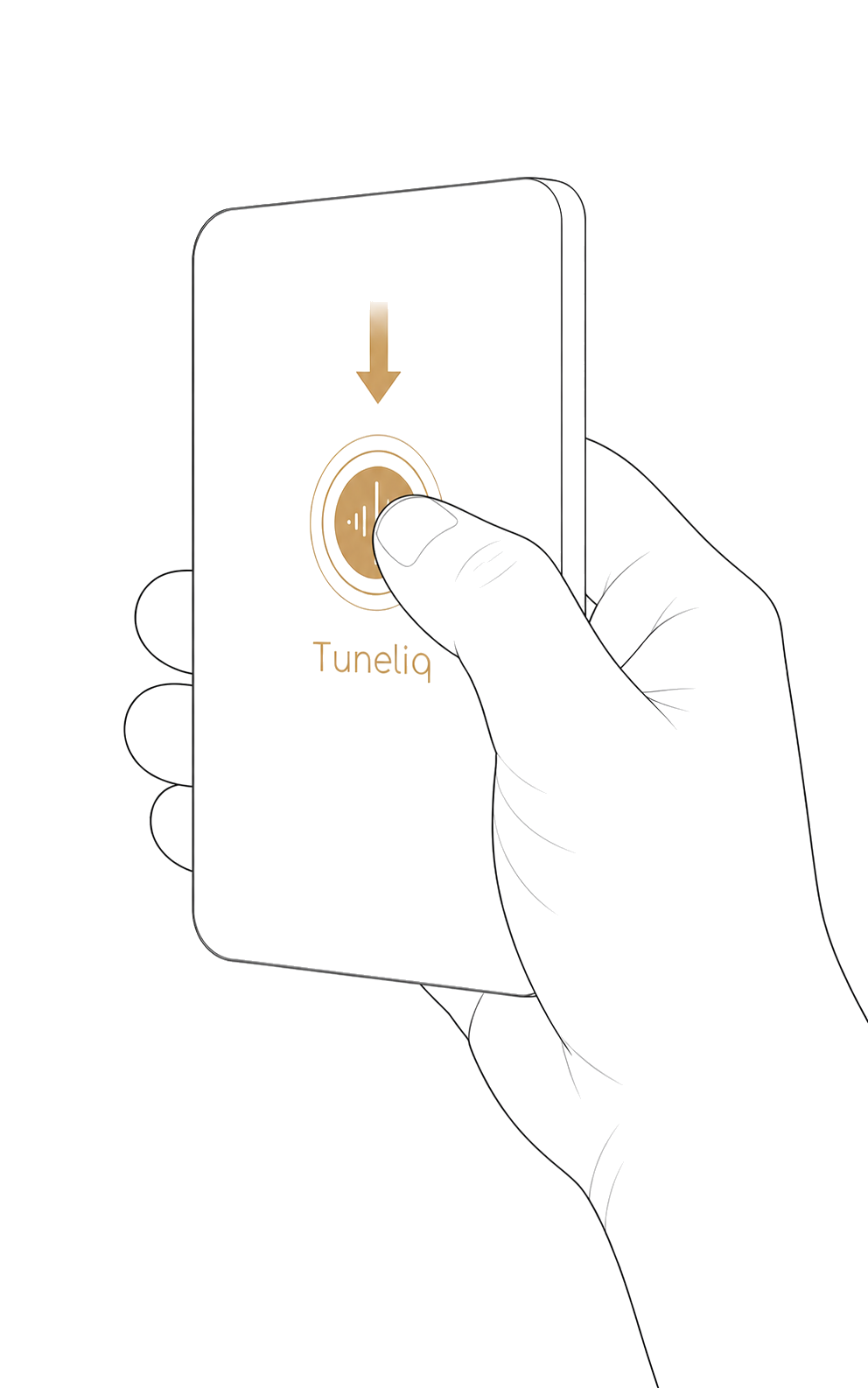
Figure 4. Pressing the Button
- Press once to start playing.
- Press again while it plays to pause.
- Press again while it is paused to carry on from that point.
- Press once more after it ends to hear it from the start.
When the song, the voice message, and the volume are all right, tap “Seal as a gift” in the app. After sealing, Bluetooth turns off, so the app can no longer find the card. That is normal.
Step 5: Switch the card off and place it in the gift box
Push the Power Switch down. Make sure all LEDs are off, then place the card in the gift box.
Tip: don't store or ship the card while it is switched on. Leaving it switched on continues to drain the battery. If the card sits for a long time before you give it, switch it on and listen once more to check the charge.
That is the basic setup. Read on only if you need to.
Advanced settings
These all happen in the app. You can give a card without touching any of them.
Setup mode and gift mode
A new card starts in setup mode: Bluetooth is on and the app can write to it. Tap “Seal as a gift” and the card switches to gift mode, turns Bluetooth off to save power, and only plays back the saved content.
To connect again, or to change what is on the card, put it back into setup mode:
- Switch the card on.
- Hold the Button on the front for about 5 seconds.
- Let go after three prompt tones.
- Wait for the card to restart.
- When the Bluetooth LED flashes, connect from the app.
Going back to setup mode does not erase the song. The song is only replaced when you write a new one.
Reveal method (song playback)
The card has two reveal methods. The default is “Play at power on,” so you can give it without changing anything.
| Setting | When the card is switched on |
|---|---|
| Play at power on (default) | Starts playing automatically |
| Play after button press | Stays quiet until the Button is pressed |
Choose “Play at power on” to start the music when the card is switched on. Choose “Play after button press” to let the recipient start it.
The card plays one prompt tone to confirm the change.
Time Capsule
Time Capsule is off by default. Turn it on and the song stays locked until the date you choose.
Write the song to the card first, then set the unlock date.
- Open “Time Capsule” in the app.
- Choose the unlock date.
- Save.
- Play it back and check the setting.
- Tap “Seal as a gift”.
Before the unlock date, pressing the Button plays a prompt tone but not the song. After the unlock date, the card follows the selected reveal method. With “Play at power on,” the song starts automatically. With “Play after button press,” playback waits until the Button is pressed.
If the recipient wants to listen early, find the “6-digit management code” in the app and give it to them. After installing the Tuneliq app, they hold the Button for about 5 seconds to return the card to setup mode, connect the card, and enter the code. After unlocking, the card follows the current reveal method.
Tip: only early unlocking requires the app. Listening after the unlock date requires no app or internet connection.
Tip: if the card is left without power for a long time, tap “Calibrate to current time” in the app to restore its clock.
Everyday use
Charging
Leave the Power Switch on while charging.
- Plug a USB-C cable into the charging port.
- Push the Power Switch up.
- A steady red light means it is charging.
- A steady green light means it is fully charged.
If the card already holds a song, plugging it in and switching it on won't start playback. Press the Button to play.
Plug the cable in mid-song and the song pauses once. Press the Button to pick up where it left off. Unplug it and the song does not resume on its own. Press the Button again.
Battery life
Battery life depends on volume, use, and temperature. The card plays longer at lower volume.
| Situation | Approximate duration |
|---|---|
| Charging | 3 hours to full |
| Playing at 50% volume | 2 hours |
| Playing at 80% volume | 1 hour |
| Switched off, in storage | 1 year, depending on conditions |
Lights
Bluetooth LED
| State | Meaning | What to do |
|---|---|---|
| Flashing | Waiting for a phone | Tap “Write to Tuneliq Card” in the app |
| Steady | Connected | Finish writing to the card in the app |
| Off | In gift mode, Bluetooth off | Hold the Button for 5 seconds to connect again |
Power LED
| State | Meaning | What to do |
|---|---|---|
| Green, briefly | Switched on from battery, starting normally | Nothing |
| Red, steady | Charging | Keep charging until green stays on |
| Green, steady | Fully charged | Unplug |
| Red, three flashes | Battery low | Leave it on and plug in a cable |
| Red and green alternating | The card has detected a fault | Unplug, switch off, switch on again. If it repeats, stop using the card and contact support |
| Both off | Running normally | Nothing |
Tip: some chargers cut power once the card is fully charged, and the charging LED goes from green to off. That is normal.
Sounds
| Sound | Meaning |
|---|---|
| Setup message | The card has no song on it yet |
| One prompt tone | The card saved a song or a setting; while Time Capsule is locked, pressing the Button also plays this tone |
| Three prompt tones | The card is about to return to setup mode |
| “Low battery. Please charge.” | The card needs charging |
What the card holds
| Item | Specification |
|---|---|
| Per card | One song and one voice message |
| Song length | Up to 5 minutes |
| Voice message length | Up to 60 seconds |
| Replacing content | Rewritable. Writing a new song replaces the old one |
| To make a song | Needs an internet connection |
| To listen | No phone and no internet needed |
| App | Tuneliq app |
| Phone requirements | iOS 16.4 or later; Android 7.0 or later |
Troubleshooting
| What you see | Why | What to do |
|---|---|---|
| Nothing happens when you switch it on | Switch not pushed all the way up, or battery flat | Check the Power Switch is up; leave it on, plug in a cable, and try again |
| No light when you plug in a cable | The card is switched off | Switch it on. A card that is off does not charge and shows no lights |
| The app can't find the card | The card is off, or it is in gift mode | Switch it on. In gift mode, hold the Button for 5 seconds and let go after three prompt tones |
| The app says the transfer failed | Too far away, or the card is off | Keep your phone within one meter, check the card is on, and transfer again |
| Nothing plays when it is switched on | Set to Play after button press, Time Capsule still locked, or battery low | Press the Button. A prompt tone means Time Capsule is locked. A low battery message means it needs charging |
| The song pauses when you plug in a cable | Playback pauses when charging starts; this is normal | Press the Button to pick up where it left off |
| Pressing the Button gives a low battery message | Battery too low to play | Leave it on, plug in a cable, and try again once it has charged |
| The song restarts after a long pause | The card has gone into power saving | This is normal. Press the Button again to play from the beginning |
| Red and green alternating | The card has detected a fault | Unplug, switch off, switch on again. If it repeats, stop using the card and contact support |
| No battery percentage in the app while charging | The reading is unreliable while charging | Unplug for a few seconds and the actual battery level reappears |
Safety
Warning: these points concern the battery and your safety. Follow all of them.
- Keep the card away from water, drinks, and damp places.
- Do not bend, crush, pierce, or open the card.
- Keep it away from open flames, hot surfaces, and long spells in direct sun.
- Use a USB-C cable in good condition and a compliant power supply.
- If the card gets noticeably hot, swells, or smells, switch it off and stop using it.
- The battery is built in and cannot be removed or replaced by the user.
- Children should use the card with an adult present.
Support
For anything else, email support@tuneliq.com. Describe the lights, the sounds, and what you did.